

Add a child as a learner
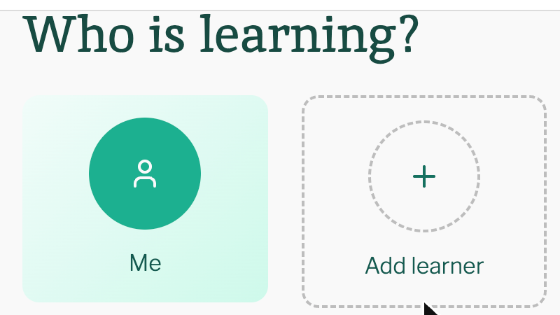
Sign in, open Who is learning? and press Add learner. Your child gets a learner profile under your account, and you switch to it when they learn.
2 मिनेट पढाइ अद्यावधिक: नोभेम्बर 1, 2026
To add a child to your KalaSudha account, sign in, open Who is learning? and press Add learner. Your child gets a learner profile under your account, and you switch to it when they learn. Add one profile for each child.
Add a learner
- Sign in.
- Open Who is learning? It shows your own tile, Me, and a tile for each learner.
- Press Add learner.
Then fill in the Add a learner form:
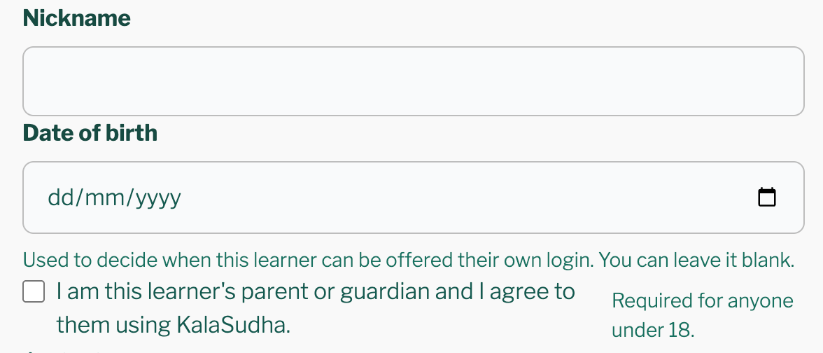
- Type a Nickname for your child.
- Add their Date of birth if you wish. The form says it is "Used to decide when this learner can be offered their own login. You can leave it blank."
- Tick the box "I am this learner's parent or guardian and I agree to them using KalaSudha."
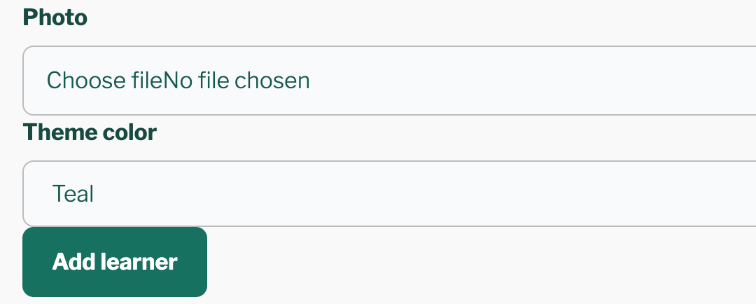
- Pick an avatar, or upload a Photo.
- Choose a Theme color.
- Press Add learner at the foot of the form. The page confirms: "Learner added."
Switch between learners
- Open Who is learning?
- Choose your child's tile. A bar at the top reads Viewing as and their nickname.
- Press Switch back to return to your own profile.
Edit a learner
Press Edit on the learner's tile, change the details and press Save changes.
Share a learner or give them their own login
Another parent or a teacher can follow your child's learning with their own login. Press Manage access on the tile and read Share a learner with another parent or a teacher. A learner can have their own login at 13 or over once a date of birth is recorded: see Give your child their own login.
If this does not work
The form says "Please confirm you are this learner's parent or guardian."
Tick the parent or guardian box and press Add learner again.
Who is learning? sends you to the sign-in page
The page needs you signed in. Sign in, then open it again.
To enrol your child on a course, start from the Academy. For anything else, see Contact us.
Last updated: नोभेम्बर 1, 2026
अझै सहायता चाहिन्छ?
तपाईंले खोजेको कुरा भेट्टाउनुभएन? हाम्रो सहायता टोली तपाईंलाई सहयोग गर्न तयार छ।
सहायता टोलीलाई सम्पर्क गर्नुहोस्हामी धेरैजसो प्रश्नहरूको जवाफ 2-3 कार्य दिनभित्र दिन्छौं।